
Learning how to map a network drive is one of the most useful skills for accessing shared folders, company servers, NAS storage devices, and network-based files quickly. Whether you work in an office, study at school, manage a home network, or access remote business storage, mapping a network drive makes file sharing faster and far more convenient.
Instead of manually searching for folders across a network every time you need them, a mapped network drive creates a permanent shortcut directly inside File Explorer. This allows the shared folder to appear like a normal hard drive on your computer.
Many businesses rely heavily on mapped drives to improve collaboration, centralize files, simplify backups, and make remote work easier. Home users also use network drives to access media servers, shared family files, gaming folders, and backup systems.
This guide explains how to map a network drive, why it’s useful, common connection problems, troubleshooting methods, security considerations, and best practices for reliable network storage access.
What Is a Network Drive?
A network drive is a storage location hosted on another device or server that can be accessed through a network connection.
The storage may exist on:
- A company file server
- A NAS device
- Another computer
- Cloud-connected storage
- Shared office infrastructure
Once mapped, the drive appears in File Explorer alongside your local drives such as:
- C:
- D:
- USB devices
- External hard drives
This makes network folders feel like normal storage locations on your computer.
What Does It Mean to Map a Network Drive?
Mapping a network drive means creating a shortcut connection between your computer and a shared folder on a network.
Instead of typing the network location repeatedly, Windows remembers the connection and automatically displays it as a dedicated drive letter.
For example:
- Z:
- X:
- Y:
Once connected, users can:
- Open files quickly
- Save documents directly
- Share folders
- Access centralized company storage
- Work collaboratively
Mapping drives simplifies workflow and improves productivity significantly.
Why Mapping a Network Drive Is Useful
There are many advantages to mapping network drives in both home and business environments.
Faster File Access
Mapped drives eliminate the need to manually browse network folders repeatedly.
Instead of searching through network paths, users simply click the drive in File Explorer.
Better Collaboration
Businesses often use shared drives so employees can:
- Access common documents
- Edit shared files
- Collaborate on projects
- Maintain organized file systems
Centralized storage improves teamwork and consistency.
Simplified Backups
When files are stored centrally:
- Backups become easier
- Disaster recovery improves
- File management becomes more organized
- Version control is easier to maintain
Reduced Local Storage Usage
Large files can remain on network servers instead of consuming local computer storage.
This is especially useful for:
- Video projects
- Shared databases
- Media libraries
- Enterprise applications
Requirements Before You Start
Before learning how to map a network drive, make sure:
- Your device is connected to the network
- The shared folder exists
- You have permission to access it
- The server is online
- You know the network path
You may also need:
- Login credentials
- VPN access
- Administrative approval
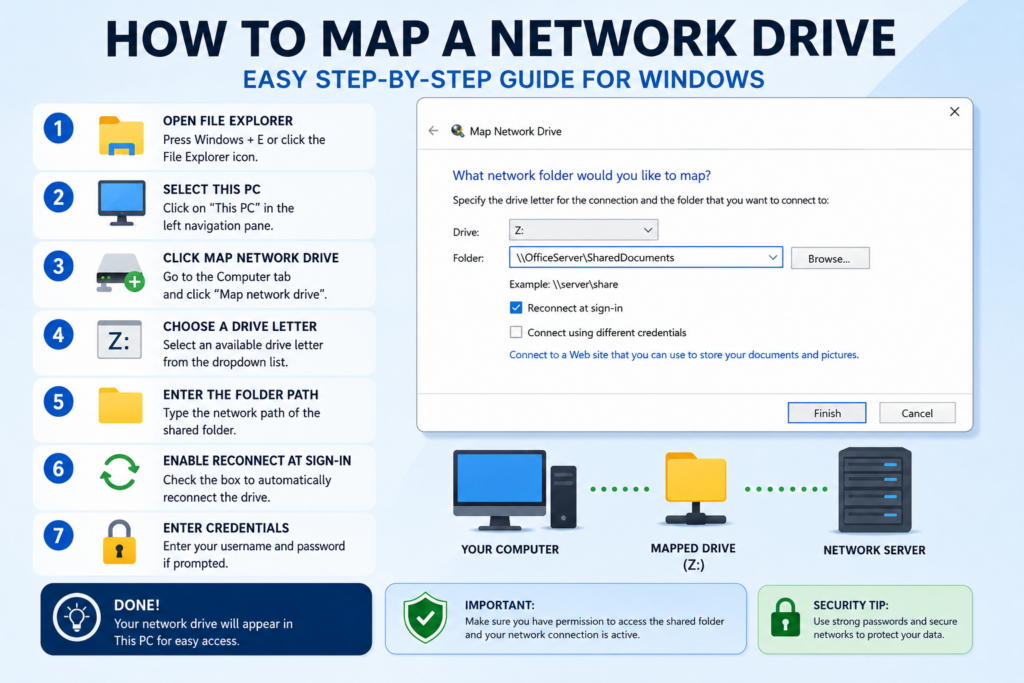
How to Map a Network Drive on Windows
The process is simple and usually takes only a few minutes.
Step 1: Open File Explorer
Press:
- Windows + E
or click the File Explorer icon from the taskbar.
Step 2: Select “This PC”
In the left sidebar:
- Click This PC
This displays your available storage devices and system drives.
Step 3: Click “Map Network Drive”
At the top menu:
- Select the Computer tab
- Click Map Network Drive
A setup window will appear.
Step 4: Choose a Drive Letter
Select a drive letter from the dropdown menu.
Popular choices include:
- Z:
- X:
- Y:
The drive letter acts as the shortcut name for the network location.
Step 5: Enter the Folder Path
Step 6: Enable Automatic Reconnection
Check:
- Reconnect at sign-in
This allows Windows to reconnect the mapped drive automatically after restarting your computer.
Step 7: Enter Username and Password
If prompted:
- Enter your network credentials
- Confirm login details
After authentication, the mapped drive will appear inside File Explorer.
How to Disconnect a Network Drive
If you no longer need the mapped connection:
- Open File Explorer
- Right-click the mapped drive
- Select Disconnect
This removes the shortcut but does not delete the files themselves.
How to Map a Network Drive Using Command Prompt
Advanced users often use Command Prompt for network drive management.
The basic command is:
net use Z: NetworkFolder
This maps the shared folder to drive letter Z.
Command Prompt options also allow:
- Persistent connections
- Credential management
- Automated scripts
- Enterprise deployment
This method is commonly used by IT administrators.
Common Problems When Mapping Network Drives
Several issues can prevent successful connections.
Incorrect Network Path
One of the most common problems is entering the wrong path.
Verify:
- Server names
- Folder names
- Spelling
- Connection details
Even a small typo can block access.
Permission Denied Errors
Some shared folders require:
- User authentication
- Administrator approval
- Group access permissions
If access fails, contact the network administrator.
Network Discovery Is Disabled
Windows devices need network discovery enabled to find shared resources.
To enable it:
- Open Network Settings
- Select Advanced Sharing Settings
- Turn on Network Discovery
This helps devices communicate properly across the network.
Firewall Restrictions
Firewalls sometimes block network sharing traffic.
Check:
- Windows Defender Firewall
- Antivirus firewall settings
- Third-party security software
Improper firewall settings can prevent mapped drive connections.
VPN Connection Issues
Remote workers often need VPN access before connecting to company drives.
Without VPN access:
- Servers may be unreachable
- Shared folders may disappear
- Authentication may fail
Always confirm the VPN connection is active first.
How Businesses Use Network Drives
Mapped drives remain extremely common in enterprise environments.
Organizations use them for:
- Shared documents
- Team collaboration
- Department storage
- Application deployment
- Backup systems
- Internal resources
IT administrators frequently automate mapped drives using:
- Group Policy
- Login scripts
- Active Directory
- Enterprise management tools
This creates consistent access across large organizations.
Cloud Storage vs Network Drives
Modern businesses increasingly combine traditional network drives with cloud storage solutions.
Popular cloud-integrated platforms include:
- OneDrive
- SharePoint
- Google Drive
- Dropbox
- NAS cloud systems
These services provide:
- Remote access
- Synchronization
- Collaboration tools
- Cross-device access
However, traditional mapped drives remain important for local business networks and enterprise infrastructure.
Security Considerations for Network Drives
Security is critical when learning how to map a network drive.
Organizations should:
- Use strong passwords
- Restrict permissions carefully
- Encrypt sensitive files
- Monitor user access
- Require VPN protection remotely
- Maintain updated security policies
Improperly secured network shares can expose confidential business data.
Professionals studying for the Microsoft AZ-500 Exam also learn advanced concepts related to secure access management, identity protection, cloud security, and enterprise network infrastructure protection, according to PrepAway.biz.
Tips to Improve Network Drive Performance
To improve reliability and speed:
- Use wired Ethernet when possible
- Restart routers regularly
- Keep drivers updated
- Maintain strong Wi-Fi signals
- Avoid overloaded networks
- Monitor server uptime
Stable connectivity improves file access and reduces interruptions.
Difference Between Local Drives and Network Drives
Local Drives
- Physically connected to the device
- Accessible offline
- Faster direct access
- Private to one computer
Network Drives
- Hosted on servers or shared devices
- Accessible across multiple users
- Require network connectivity
- Centralized for collaboration
Both types of storage serve different purposes depending on workflow needs.
Can You Map a Network Drive on Wi-Fi?
Yes. Wireless networks fully support mapped drives.
However, Wi-Fi quality affects:
- File transfer speed
- Stability
- Reliability
- Connection consistency
Weak signals may cause disconnections or slow performance.
Why Mapped Drives Sometimes Disconnect
Mapped drives may disappear because:
- The server went offline
- The VPN disconnected
- Credentials expired
- Network settings changed
- The device lost internet access
Restarting the computer or reconnecting manually usually fixes temporary issues.
Frequently Asked Questions
Is mapping a network drive safe?
Yes, especially on trusted networks with proper security controls.
Can I map multiple network drives?
Yes. Windows supports multiple mapped drives simultaneously.
Do I need administrator access?
Not always. It depends on folder permissions and company policies.
Can I map cloud storage as a network drive?
Yes. Some cloud platforms integrate directly with File Explorer.
Why does my mapped drive keep disconnecting?
This often happens because of:
- Weak network connections
- VPN interruptions
- Server downtime
- Expired credentials
Final Thoughts
Learning how to map a network drive is an important skill for both home users and professionals working with shared storage systems.
Whether you need access to:
- Company servers
- Shared office folders
- NAS storage
- Cloud-integrated systems
- Collaborative team resources
mapped drives make file access faster, easier, and more organized.
By understanding proper setup methods, troubleshooting techniques, security practices, and network requirements, users can create reliable shared storage connections that improve productivity and simplify everyday workflows across modern digital environments.